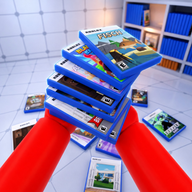
Mastering the Clean the Game Room PC Controls for Max Efficiency
Learn the essential Clean the Game Room PC controls to organize shelves faster. Discover advanced tips, keybind strategies, and troubleshooting methods.
Organizing a chaotic, cluttered space requires precision, focus, and lightning-fast reflexes, especially in Roblox's hit scavenger hunt experience. If you want to dominate the leaderboards and impress your friends, mastering the Clean the Game Room PC controls is your very first step to success. In a game where every single second counts, fumbling with your keyboard or clicking the wrong button can easily ruin a perfect run.
Understanding how to effectively use the Clean the Game Room PC controls allows you to sort scattered game cases onto the correct genre shelves before the timer runs out or the mess gets completely overwhelming. With over 1.7 million visits to the experience, the competition is fierce. In this comprehensive guide, we will break down every single keybind, compare PC inputs to console options, and provide actionable speedrunning tips to help you clean up the virtual room faster than ever before.
Complete Breakdown of Core Keybinds
To succeed in this popular Roblox adventure, you need to know exactly how your mouse and keyboard interact with the environment. The developer has kept the input scheme intentionally simple, allowing players of all ages to jump in and start organizing. However, simplicity does not mean you can ignore technique.
Familiarizing yourself with the default setup is crucial for building muscle memory. Below is a detailed look at the primary inputs you will be using throughout your gameplay sessions.
Table 1: Core PC Input Breakdown
When you examine the Clean the Game Room PC controls, the heavy reliance on the mouse becomes immediately apparent. Your right hand will be doing the majority of the heavy lifting, managing both the camera movement and the inventory cycling. Your left hand, resting on the keyboard, primarily handles character movement and the occasional drop command using the "Q" key.
Comparing PC and Console Inputs
While this guide focuses heavily on the desktop experience, it is always helpful to understand how your inputs stack up against players on other platforms. Because Roblox features cross-platform play, you might find yourself competing against console users. Knowing their limitations can give you a strategic advantage.
Console players rely on triggers and face buttons, which can sometimes be slower than the rapid flick of a gaming mouse.
Table 2: Cross-Platform Control Comparison
According to community reports, PC players generally have a distinct advantage in inventory management. The ability to flick the mouse wheel to rapidly cycle through held cases is significantly faster than repeatedly pulling a console trigger. If you are serious about optimizing your Clean the Game Room PC controls, investing in a mouse with a high-quality, notched scroll wheel is highly recommended.
Advanced Strategies for Using Your Mouse and Keyboard
Knowing the buttons is one thing; using them efficiently is an entirely different challenge. Speedrunners and top-tier players have developed specific strategies to shave seconds off their completion times. The secret lies in overlapping your actions and minimizing unnecessary movements.
First, practice the "Pick and Flick" method. Because the Left Click serves as both the pick-up and place command, you can grab a game case and immediately flick your mouse toward the corresponding genre shelf. By the time your character physically walks over to the shelf, your cursor should already be in position to place the item.
Second, master the inventory cycle. You can hold multiple game cases at once. Instead of picking up one game, running to the shelf, and running back, you should gather a cluster of games from the same area. As you run toward the shelves, use the mouse wheel to cycle to the correct genre. Pre-selecting the right game before you arrive at the destination is a massive time-saver.
Table 3: Speedrunning Time Saves via Control Optimization
Troubleshooting Common PC Control Issues
Even the most optimized setup can run into technical difficulties. Sometimes, the Roblox client glitches, or your hardware stops responding. If your Clean the Game Room PC controls suddenly stop working in the middle of a frantic organizing session, you need to know how to fix the issue quickly.
One of the most common complaints from the community involves the mouse cursor disappearing or the camera locking up. This usually happens if you accidentally press the wrong key combination or if the Roblox window loses focus.
Table 4: Common Control Glitches and Fixes
If you continue to experience persistent input lag, you may need to check your system's overall performance. Closing background applications or lowering the in-game graphics quality can significantly improve input responsiveness, ensuring that your clicks register exactly when you intend them to.
Optimizing Your Setup for Roblox Scavenger Hunts
Your physical hardware setup plays a massive role in how effectively you can utilize the Clean the Game Room PC controls. Ergonomics and peripheral settings can make the difference between a frustrating experience and a smooth, enjoyable scavenger hunt.
For the best experience, you should adjust your mouse DPI (Dots Per Inch) and in-game sensitivity. Because you need to quickly snap your camera from the floor (to pick up cases) to the shelves (to place them), a medium-to-high sensitivity is generally preferred. You want to be able to turn your character 180 degrees without having to drag your mouse completely off your desk pad.
Table 5: Recommended Mouse Settings for Roblox
Furthermore, consider your keyboard positioning. Since your left hand only needs the WASD keys for movement and the Q key for dropping items, angle your keyboard slightly to reduce wrist strain during long play sessions. For more detailed information on adjusting your core keybinds and optimizing client performance, you can always consult the Roblox Official Support documentation.
The Psychology of Efficiency and Controls
It is fascinating to look at how a simple set of inputs can drive player engagement. Scavenger hunt games like this tap into the human brain's desire for order and completion. When the Clean the Game Room PC controls feel responsive and intuitive, players enter a psychological state known as "flow."
In this flow state, you are no longer thinking about pressing Left Click or scrolling the mouse wheel; you are simply reacting to the visual cues of the scattered game cases and the empty shelves. The physical inputs become an extension of your intent.
To maintain this flow state, minimize distractions. Play in full-screen mode to prevent your mouse from accidentally clicking outside the game window. Keep your desk clear so your mouse movements are unobstructed. The cleaner your real-life gaming room is, the easier it will be to clean the virtual one!
Mastering the Q Key for Inventory Management
While the mouse gets most of the attention, the Q key is an unsung hero in your control arsenal. Dropping items might seem counterintuitive in a game about picking things up, but it is a vital strategy for high-level inventory management.
Imagine you are running toward the "Adventure" shelf with three adventure games and one "Racing" game accidentally mixed into your held items. If you cycle to the racing game and try to place it on the adventure shelf, you will waste precious time. Instead, as you are running, cycle to the racing game and tap Q.
Dropping the incorrect item on the fly allows you to maintain your forward momentum. You can always come back for the dropped item later. Mastering this specific aspect of the Clean the Game Room PC controls separates the casual players from the top organizers.
Frequently Asked Questions (FAQ)
Can I change the Clean the Game Room PC controls to different keys? Currently, the developer has hard-coded the inputs to Left Click, Q, and the Mouse Wheel. Roblox does not natively allow you to rebind specific experience controls unless the developer provides an in-game settings menu. You would need third-party mouse software to remap your keys externally.
Why is my mouse wheel scrolling past the game case I want? This is a common issue with "infinite scroll" or smooth-scrolling mice. For the best precision with the Clean the Game Room PC controls, make sure your mouse wheel is set to tactile or notched mode. This ensures that one physical click of the wheel equals one item cycle in the game.
Is it faster to play on PC or Console? Based on player experience and community reports, playing on a PC is generally faster. The combination of quick mouse flicks for camera movement and the rapid scrolling of the mouse wheel for inventory management outperforms the analog sticks and triggers found on standard console controllers.
What happens if I press Q by accident? Pressing Q will simply drop the currently highlighted game case from your held inventory back onto the floor. It does not delete the item, so you can just use Left Click to pick it right back up and continue organizing the room.
Related guides
Complete Guide to Clean the Game Room Controls for PC, Mobile, and Xbox
Master the Clean the Game Room controls with our comprehensive guide. Learn PC keybinds, mobile setups, and advanced tips to clean faster on Roblox.
Master the Clean the Game Room Console Controls for Fast Organizing
Learn the complete Clean the Game Room console controls to organize shelves faster. Discover tips, tricks, and strategies for this hit Roblox game.